Showing posts with label Weblogic. Show all posts
Weblogic Server Startup Fails with Error JPS-01050, "Caused by: java.io.IOException: Disc quota exceeded"
Starting WLS with line:
/erp/apps/java/jdk1.8.0_65/bin/java -server -d64 -Xms4096m -Xmx4096m -Dweblogic.Name=AdminServer -Djava.security.policy=/erp/apps/obi12/Oracle/Middleware/wlserver/server/lib/weblogic.policy -Dweblogic.ProductionModeEnabled=true -Djava.system.class.loader=com.oracle.classloader.weblogic.LaunchClassLoader -Djava.protocol.handler.pkgs=oracle.mds.net.protocol -Dopss.version=12.2.1 -
............
141107> <Version: WebLogic Server 12.2.1.0.0 Tue Oct 6 10:05:47 PDT 2015 1721936>
Nov 17, 2016 1:09:00 PM oracle.security.jps.internal.credstore.ssp.CsfWalletManager openWallet
WARNING: Opening of wallet based credential store failed. Reason java.io.IOException
Nov 17, 2016 1:09:00 PM oracle.security.jps.internal.config.OpssCommonStartup preStart
INFO: Jps startup failed.
<Nov 17, 2016 1:09:04 PM CST> <Notice> <WebLogicServer> <BEA-000365> <Server state changed to STARTING.>
<Nov 17, 2016 1:09:04 PM CST> <Info> <WorkManager> <BEA-002900> <Initializing self-tuning thread pool.>
<Nov 17, 2016 1:09:04 PM CST> <Info> <WorkManager> <BEA-002942> <CMM memory level becomes 0. Setting standby thread pool size to 256.>
<Nov 17, 2016 1:09:04 PM CST> <Critical> <WebLogicServer> <BEA-000362> <Server failed. Reason:
There are 1 nested errors:
oracle.security.jps.JpsException: JPS-01050: Opening of wallet based credential store failed. Reason java.io.IOException
at oracle.security.jps.internal.config.OpssCommonStartup.preStart(OpssCommonStartup.java:334)
at oracle.security.jps.JpsStartup.preStart(JpsStartup.java:286)
Caused by: oracle.security.jps.service.credstore.CredStoreException: JPS-01050: Opening of wallet based credential store failed. Reason java.io.IOException
at oracle.security.jps.internal.credstore.ssp.CsfWalletManager.openWallet(CsfWalletManager.java:187)
Caused by: java.io.IOException
at oracle.security.pki.OracleWallet.open(Unknown Source)
at oracle.security.jps.internal.credstore.ssp.CsfWalletManager.openWallet(CsfWalletManager.java:175)
... 30 more
Caused by: java.lang.ExceptionInInitializerError
at oracle.security.pki.OracleFileSSOWalletImpl.a(Unknown Source)
... 32 more
Caused by: java.lang.RuntimeException: java.io.IOException: Disc quota exceeded
at oracle.security.pki.FileLocker.<clinit>(Unknown Source)
... 33 more
Caused by: java.io.IOException: Disc quota exceeded
at java.io.UnixFileSystem.createFileExclusively(Native Method)
at java.io.File.createTempFile(File.java:2024)
at java.io.File.createTempFile(File.java:2070)
... 34 more
SOLUTION
Review the OS level quota setting for the user and either increase it or move unwanted files to make more space
For example "quota" command will display the users' disk usage and limits on Linux OS
/erp/apps/java/jdk1.8.0_65/bin/java -server -d64 -Xms4096m -Xmx4096m -Dweblogic.Name=AdminServer -Djava.security.policy=/erp/apps/obi12/Oracle/Middleware/wlserver/server/lib/weblogic.policy -Dweblogic.ProductionModeEnabled=true -Djava.system.class.loader=com.oracle.classloader.weblogic.LaunchClassLoader -Djava.protocol.handler.pkgs=oracle.mds.net.protocol -Dopss.version=12.2.1 -
............
141107> <Version: WebLogic Server 12.2.1.0.0 Tue Oct 6 10:05:47 PDT 2015 1721936>
Nov 17, 2016 1:09:00 PM oracle.security.jps.internal.credstore.ssp.CsfWalletManager openWallet
WARNING: Opening of wallet based credential store failed. Reason java.io.IOException
Nov 17, 2016 1:09:00 PM oracle.security.jps.internal.config.OpssCommonStartup preStart
INFO: Jps startup failed.
<Nov 17, 2016 1:09:04 PM CST> <Notice> <WebLogicServer> <BEA-000365> <Server state changed to STARTING.>
<Nov 17, 2016 1:09:04 PM CST> <Info> <WorkManager> <BEA-002900> <Initializing self-tuning thread pool.>
<Nov 17, 2016 1:09:04 PM CST> <Info> <WorkManager> <BEA-002942> <CMM memory level becomes 0. Setting standby thread pool size to 256.>
<Nov 17, 2016 1:09:04 PM CST> <Critical> <WebLogicServer> <BEA-000362> <Server failed. Reason:
There are 1 nested errors:
oracle.security.jps.JpsException: JPS-01050: Opening of wallet based credential store failed. Reason java.io.IOException
at oracle.security.jps.internal.config.OpssCommonStartup.preStart(OpssCommonStartup.java:334)
at oracle.security.jps.JpsStartup.preStart(JpsStartup.java:286)
Caused by: oracle.security.jps.service.credstore.CredStoreException: JPS-01050: Opening of wallet based credential store failed. Reason java.io.IOException
at oracle.security.jps.internal.credstore.ssp.CsfWalletManager.openWallet(CsfWalletManager.java:187)
Caused by: java.io.IOException
at oracle.security.pki.OracleWallet.open(Unknown Source)
at oracle.security.jps.internal.credstore.ssp.CsfWalletManager.openWallet(CsfWalletManager.java:175)
... 30 more
Caused by: java.lang.ExceptionInInitializerError
at oracle.security.pki.OracleFileSSOWalletImpl.a(Unknown Source)
... 32 more
Caused by: java.lang.RuntimeException: java.io.IOException: Disc quota exceeded
at oracle.security.pki.FileLocker.<clinit>(Unknown Source)
... 33 more
Caused by: java.io.IOException: Disc quota exceeded
at java.io.UnixFileSystem.createFileExclusively(Native Method)
at java.io.File.createTempFile(File.java:2024)
at java.io.File.createTempFile(File.java:2070)
... 34 more
SOLUTION
Review the OS level quota setting for the user and either increase it or move unwanted files to make more space
For example "quota" command will display the users' disk usage and limits on Linux OS
Weblogic AdminServer fails with "unable to get file lock, will retry" error message
Jan 7, 2014 9:09:20 AM PST> <Info> <Management> <BEA-141281> <unable to get file lock, will retry ...>
<Jan 7, 2014 9:09:30 AM PST> <Info> <Management> <BEA-141281> <unable to get file lock, will retry ...>
<Jan 7, 2014 9:09:40 AM PST> <Info> <Management> <BEA-141281> <unable to get file lock, will retry ...>
<Jan 7, 2014 9:09:50 AM PST> <Info> <Management> <BEA-141281> <unable to get file lock, will retry ...>
<Jan 7, 2014 9:10:00 AM PST> <Info> <Management> <BEA-141281> <unable to get file lock, will retry ...>
SOLUTION
When a server is starting, a .lok file is created. This is found under $FMW_HOME/servers/SERVERNAME/tmp/SERVERNAME.lok. If the file exists , then it cannot be created and the server cannot start.
To correct this delete the existing file or kill the running process that is holding such file.
<Jan 7, 2014 9:09:30 AM PST> <Info> <Management> <BEA-141281> <unable to get file lock, will retry ...>
<Jan 7, 2014 9:09:40 AM PST> <Info> <Management> <BEA-141281> <unable to get file lock, will retry ...>
<Jan 7, 2014 9:09:50 AM PST> <Info> <Management> <BEA-141281> <unable to get file lock, will retry ...>
<Jan 7, 2014 9:10:00 AM PST> <Info> <Management> <BEA-141281> <unable to get file lock, will retry ...>
SOLUTION
When a server is starting, a .lok file is created. This is found under $FMW_HOME/servers/SERVERNAME/tmp/SERVERNAME.lok. If the file exists , then it cannot be created and the server cannot start.
To correct this delete the existing file or kill the running process that is holding such file.
Weblogic Fails To Start With Error Unable To Obtain Lock
After killing the Weblogic server, the following errors were raised on restart:
<23-Jul-009 12:57:00 o'clock BST> <Critical> <WebLogicServer> <BEA-000362> <Server failed. R
There are 1 nested errors:
weblogic.management.ManagementException: Unable to obtain lock on /opt/bea/user_projects/domains/ORACLE_COMMUNICATIONS/servers/AdminServer/tmp/AdminServer.lok. Server may already be running
at weblogic.management.internal.ServerLocks.getServerLock(ServerLocks.java:159)
at weblogic.management.internal.ServerLocks.getServerLock(ServerLocks.java:58)
at weblogic.management.internal.DomainDirectoryService.start(DomainDirectoryService.java:75)
at weblogic.t3.srvr.ServerServicesManager.startService(ServerServicesManager.java:374)
at weblogic.t3.srvr.ServerServicesManager.startInStandbyState(ServerServicesManager.java:125)
And then on a re-attempt:
<23-Jul-2009 12:58:06 o'clock BST> <Critical> <WebLogicServer> <BEA-000362> <Server failed. Reason:
There are 1 nested errors:
weblogic.diagnostics.lifecycle.DiagnosticComponentLifecycleException: weblogic.store.PersistentStoreException: java.io.IOException: [Store:280021]There was an error while opening the file store file "WLS_DIAGNOSTICS000000.DAT"
at weblogic.diagnostics.lifecycle.ArchiveLifecycleImpl.initialize(ArchiveLifecycleImpl.java:44)
at weblogic.diagnostics.lifecycle.DiagnosticFoundationService.start(DiagnosticFoundationService.java:107)
at weblogic.t3.srvr.SubsystemRequest.run(SubsystemRequest.java:64)
at weblogic.work.ExecuteThread.execute(ExecuteThread.java:209)
at weblogic.work.ExecuteThread.run(ExecuteThread.java:181)
Caused by: weblogic.store.PersistentStoreException: java.io.IOException: [Store:280021]There was an error while opening the file store file "WLS_DIAGNOSTICS000000.DAT"
at weblogic.store.io.file.Heap.open(Heap.java:166)
at weblogic.store.io.file.FileStoreIO.open(FileStoreIO.java:85)
at weblogic.store.internal.PersistentStoreImpl.open(PersistentStoreImpl.java:350)
at weblogic.store.PersistentStoreManager.createFileStore(PersistentStoreManager.java:202)
at weblogic.diagnostics.archive.DiagnosticStoreRepository.getStore(DiagnosticStoreRepository.java:61)
at weblogic.diagnostics.lifecycle.ArchiveLifecycleImpl.initialize(ArchiveLifecycleImpl.java:42)
... 4 more
Caused by: java.io.IOException: [Store:280021]There was an error while opening the file store file "WLS_DIAGNOSTICS000000.DAT"
at weblogic.store.io.file.StoreDir.throwIOException(StoreDir.java:213)
at weblogic.store.io.file.StoreDir.open(StoreDir.java:103)
at weblogic.store.io.file.Heap.open(Heap.java:164)
... 9 more
Caused by: java.io.IOException: Error from fcntl() for file locking, Resource temporarily unavailable, errno=11
at weblogic.store.io.file.direct.DirectIONative.open(Native Method)
at weblogic.store.io.file.direct.DirectFileChannel.<init>(DirectFileChannel.java:51)
at weblogic.store.io.file.direct.DirectIOManager.open(DirectIOManager.java:138)
at weblogic.store.io.file.StoreFile.openInternal(StoreFile.java:112)
at weblogic.store.io.file.StoreFile.open(StoreFile.java:142)
at weblogic.store.io.file.StoreDir.open(StoreDir.java:95)
... 10 more
This problem sometimes occurs if you killed the bin/startWebLogic process via:
SOLUTION
There are two possible solutions:
remove the lock files and restart
kill any remaining server processes (if they exist) and restart
Solution1: Removing the lock files and restarting
1. Find -name "*.DAT" files in user_projects/domains/<your domain name> directory (as appropriate) and move or remove them, for example:
$ find . -name "*DAT"
./servers/AdminServer/data/store/diagnostics/WLS_DIAGNOSTICS000000.DAT
./servers/AdminServer/data/store/default/_WLS_ADMINSERVER000000.DAT
NOTE: Gentle reminder that Unix is case sensitive. you do need to make sure you do NOT delete the file <CM HOME>/security/SerializedSystemIni.dat, it is the files ending with "*.DAT" not "*.dat"
Deleting .DAT files: with reference to Note 1332274.1. Please be aware of the implications of removing the .DAT files. "...There may be error messages for transactions that were already committed and finished during the WebLogic Server run. However, the transaction entries will still be available in the transaction persistent store file (.DAT file)..."
2. Remove lock files: "EmbeddedLDAP.lok" and "AdminServer.lok" (maybe some more). These files are usually under paths such as below
/opt/bea/user_projects/domains/ORACLE_COMMUNICATIONS/servers/AdminServer/tmp/AdminServer.lok
opt/bea/user_projects/domains/ORACLE_COMMUNICATIONS/servers/AdminServer/data/ldap/ldapfiles/EmbeddedLDAP.lok
3. You can use the following shell script to find out which process is listening to your port, and kill this via kill -TERM:
#!/bin/ksh
line='---------------------------------------------'
pids=$(/usr/bin/ps -ef | sed 1d | awk '{print $2}')
if [ $# -eq 0 ]; then
read ans?"Enter port you would like to know pid for: "
else
ans=$1
fi
for f in $pids
do
/usr/proc/bin/pfiles $f 2>/dev/null | /usr/xpg4/bin/grep -q "port: $ans"
if [ $? -eq 0 ]; then
echo $line
echo "Port: $ans is being used by PID:\c"
/usr/bin/ps -ef -o pid -o args | egrep -v "grep|pfiles" | grep $f
fi
done
exit 0
4. Execute:
nohup ./startWebLogic.sh &
Solution2: kill any remaining server processes (if they exist) and restart
Using the example of a managed server
1. Find the PID of the managed server
ps -ef | grep ManagedServer
2. Kill the managed server process with a -KILL
kill -9 <pid of managed server>
3. Restart the Admin server and Managed servers
nohup ./startWebLogic.sh &
Note: the startWebLogic.sh script is usually run with nohup so the user can exit the shell leaving the process running.
For Windows based servers please see the following
1. The AdminServer.lok file default location is usually: C:\Oracle\Middleware\user_projects\domains\<domain_name>\servers\AdminServer\tmp\
2. Start startWebLogic.cmd
Note: If AdminServer.lok cannot be deleted:
i) end all java.exe processes in Task Manager on WebLogic server,
ii) delete AdminServer.lok file
<23-Jul-009 12:57:00 o'clock BST> <Critical> <WebLogicServer> <BEA-000362> <Server failed. R
There are 1 nested errors:
weblogic.management.ManagementException: Unable to obtain lock on /opt/bea/user_projects/domains/ORACLE_COMMUNICATIONS/servers/AdminServer/tmp/AdminServer.lok. Server may already be running
at weblogic.management.internal.ServerLocks.getServerLock(ServerLocks.java:159)
at weblogic.management.internal.ServerLocks.getServerLock(ServerLocks.java:58)
at weblogic.management.internal.DomainDirectoryService.start(DomainDirectoryService.java:75)
at weblogic.t3.srvr.ServerServicesManager.startService(ServerServicesManager.java:374)
at weblogic.t3.srvr.ServerServicesManager.startInStandbyState(ServerServicesManager.java:125)
And then on a re-attempt:
<23-Jul-2009 12:58:06 o'clock BST> <Critical> <WebLogicServer> <BEA-000362> <Server failed. Reason:
There are 1 nested errors:
weblogic.diagnostics.lifecycle.DiagnosticComponentLifecycleException: weblogic.store.PersistentStoreException: java.io.IOException: [Store:280021]There was an error while opening the file store file "WLS_DIAGNOSTICS000000.DAT"
at weblogic.diagnostics.lifecycle.ArchiveLifecycleImpl.initialize(ArchiveLifecycleImpl.java:44)
at weblogic.diagnostics.lifecycle.DiagnosticFoundationService.start(DiagnosticFoundationService.java:107)
at weblogic.t3.srvr.SubsystemRequest.run(SubsystemRequest.java:64)
at weblogic.work.ExecuteThread.execute(ExecuteThread.java:209)
at weblogic.work.ExecuteThread.run(ExecuteThread.java:181)
Caused by: weblogic.store.PersistentStoreException: java.io.IOException: [Store:280021]There was an error while opening the file store file "WLS_DIAGNOSTICS000000.DAT"
at weblogic.store.io.file.Heap.open(Heap.java:166)
at weblogic.store.io.file.FileStoreIO.open(FileStoreIO.java:85)
at weblogic.store.internal.PersistentStoreImpl.open(PersistentStoreImpl.java:350)
at weblogic.store.PersistentStoreManager.createFileStore(PersistentStoreManager.java:202)
at weblogic.diagnostics.archive.DiagnosticStoreRepository.getStore(DiagnosticStoreRepository.java:61)
at weblogic.diagnostics.lifecycle.ArchiveLifecycleImpl.initialize(ArchiveLifecycleImpl.java:42)
... 4 more
Caused by: java.io.IOException: [Store:280021]There was an error while opening the file store file "WLS_DIAGNOSTICS000000.DAT"
at weblogic.store.io.file.StoreDir.throwIOException(StoreDir.java:213)
at weblogic.store.io.file.StoreDir.open(StoreDir.java:103)
at weblogic.store.io.file.Heap.open(Heap.java:164)
... 9 more
Caused by: java.io.IOException: Error from fcntl() for file locking, Resource temporarily unavailable, errno=11
at weblogic.store.io.file.direct.DirectIONative.open(Native Method)
at weblogic.store.io.file.direct.DirectFileChannel.<init>(DirectFileChannel.java:51)
at weblogic.store.io.file.direct.DirectIOManager.open(DirectIOManager.java:138)
at weblogic.store.io.file.StoreFile.openInternal(StoreFile.java:112)
at weblogic.store.io.file.StoreFile.open(StoreFile.java:142)
at weblogic.store.io.file.StoreDir.open(StoreDir.java:95)
... 10 more
This problem sometimes occurs if you killed the bin/startWebLogic process via:
SOLUTION
There are two possible solutions:
remove the lock files and restart
kill any remaining server processes (if they exist) and restart
Solution1: Removing the lock files and restarting
1. Find -name "*.DAT" files in user_projects/domains/<your domain name> directory (as appropriate) and move or remove them, for example:
$ find . -name "*DAT"
./servers/AdminServer/data/store/diagnostics/WLS_DIAGNOSTICS000000.DAT
./servers/AdminServer/data/store/default/_WLS_ADMINSERVER000000.DAT
NOTE: Gentle reminder that Unix is case sensitive. you do need to make sure you do NOT delete the file <CM HOME>/security/SerializedSystemIni.dat, it is the files ending with "*.DAT" not "*.dat"
Deleting .DAT files: with reference to Note 1332274.1. Please be aware of the implications of removing the .DAT files. "...There may be error messages for transactions that were already committed and finished during the WebLogic Server run. However, the transaction entries will still be available in the transaction persistent store file (.DAT file)..."
2. Remove lock files: "EmbeddedLDAP.lok" and "AdminServer.lok" (maybe some more). These files are usually under paths such as below
/opt/bea/user_projects/domains/ORACLE_COMMUNICATIONS/servers/AdminServer/tmp/AdminServer.lok
opt/bea/user_projects/domains/ORACLE_COMMUNICATIONS/servers/AdminServer/data/ldap/ldapfiles/EmbeddedLDAP.lok
3. You can use the following shell script to find out which process is listening to your port, and kill this via kill -TERM:
#!/bin/ksh
line='---------------------------------------------'
pids=$(/usr/bin/ps -ef | sed 1d | awk '{print $2}')
if [ $# -eq 0 ]; then
read ans?"Enter port you would like to know pid for: "
else
ans=$1
fi
for f in $pids
do
/usr/proc/bin/pfiles $f 2>/dev/null | /usr/xpg4/bin/grep -q "port: $ans"
if [ $? -eq 0 ]; then
echo $line
echo "Port: $ans is being used by PID:\c"
/usr/bin/ps -ef -o pid -o args | egrep -v "grep|pfiles" | grep $f
fi
done
exit 0
4. Execute:
nohup ./startWebLogic.sh &
Solution2: kill any remaining server processes (if they exist) and restart
Using the example of a managed server
1. Find the PID of the managed server
ps -ef | grep ManagedServer
2. Kill the managed server process with a -KILL
kill -9 <pid of managed server>
3. Restart the Admin server and Managed servers
nohup ./startWebLogic.sh &
Note: the startWebLogic.sh script is usually run with nohup so the user can exit the shell leaving the process running.
For Windows based servers please see the following
1. The AdminServer.lok file default location is usually: C:\Oracle\Middleware\user_projects\domains\<domain_name>\servers\AdminServer\tmp\
2. Start startWebLogic.cmd
Note: If AdminServer.lok cannot be deleted:
i) end all java.exe processes in Task Manager on WebLogic server,
ii) delete AdminServer.lok file
WebLogic Admin Server Startup Fails.
JPS-01538: The default policy provider was not found
JPS-01514: The default context is missing in jps-config.xml.
JPS-04301: Cannot read from policy store
<Jun 22, 2016 12:19:11 AM PDT> <Error> <Security> <BEA-090892> <The dynamic loading of the OPSS java security policy provider class oracle.security.jps.internal.policystore.JavaPolicyProvider failed due to problem inside OPSS java security policy provider. Exception was thrown when loading or setting the JPSS policy provider. Enable the debug flag -Djava.security.debug=jpspolicy to get more information. Error message: JPS-01538: The default policy provider was not found.>
<Jun 22, 2016 12:19:11 AM PDT> <Critical> <WebLogicServer> <BEA-000386> <Server subsystem failed. Reason: weblogic.security.SecurityInitializationException: The dynamic loading of the OPSS java security policy provider class oracle.security.jps.internal.policystore.JavaPolicyProvider failed due to problem inside OPSS java security policy provider. Exception was thrown when loading or setting the JPSS policy provider. Enable the debug flag -Djava.security.debug=jpspolicy to get more information. Error message: JPS-01538: The default policy provider was not found.
weblogic.security.SecurityInitializationException: The dynamic loading of the OPSS java security policy provider class oracle.security.jps.internal.policystore.JavaPolicyProvider failed due to problem inside OPSS java security policy provider. Exception was thrown when loading or setting the JPSS policy provider. Enable the debug flag -Djava.security.debug=jpspolicy to get more information. Error message: JPS-01538: The default policy provider was not found.
at weblogic.security.service.CommonSecurityServiceManagerDelegateImpl.loadOPSSPolicy(CommonSecurityServiceManagerDelegateImpl.java:1394)
at weblogic.security.service.CommonSecurityServiceManagerDelegateImpl.initialize(CommonSecurityServiceManagerDelegateImpl.java:1018)
at weblogic.security.service.SecurityServiceManager.initialize(SecurityServiceManager.java:875)
at weblogic.security.SecurityService.start(SecurityService.java:141)
at weblogic.t3.srvr.SubsystemRequest.run(SubsystemRequest.java:64)
Truncated. see log file for complete stacktrace
Caused By: oracle.security.jps.JpsRuntimeException: JPS-01538: The default policy provider was not found.
at oracle.security.jps.internal.policystore.PolicyDelegationController.<init>(PolicyDelegationController.java:273)
at oracle.security.jps.internal.policystore.PolicyDelegationController.<init>(PolicyDelegationController.java:265)
at oracle.security.jps.internal.policystore.JavaPolicyProvider.<init>(JavaPolicyProvider.java:136)
at sun.reflect.NativeConstructorAccessorImpl.newInstance0(Native Method)
at sun.reflect.NativeConstructorAccessorImpl.newInstance(NativeConstructorAccessorImpl.java:39)
Truncated. see log file for complete stacktrace
Caused By: oracle.security.jps.JpsException: JPS-01538: The default policy provider was not found.
at oracle.security.jps.internal.policystore.PolicyUtil.getDefaultPolicyStore(PolicyUtil.java:705)
at oracle.security.jps.internal.policystore.PolicyDelegationController.<init>(PolicyDelegationController.java:271)
at oracle.security.jps.internal.policystore.PolicyDelegationController.<init>(PolicyDelegationController.java:265)
at oracle.security.jps.internal.policystore.JavaPolicyProvider.<init>(JavaPolicyProvider.java:136)
at sun.reflect.NativeConstructorAccessorImpl.newInstance0(Native Method)
Truncated. see log file for complete stacktrace
Caused By: oracle.security.jps.JpsException: JPS-01514: The default context is missing in jps-config.xml.
at oracle.security.jps.internal.policystore.PolicyUtil$1.run(PolicyUtil.java:665)
at oracle.security.jps.internal.policystore.PolicyUtil$1.run(PolicyUtil.java:650)
at java.security.AccessController.doPrivileged(Native Method)
at oracle.security.jps.internal.policystore.PolicyUtil.getDefaultPolicyStore(PolicyUtil.java:650)
at oracle.security.jps.internal.policystore.PolicyDelegationController.<init>(PolicyDelegationController.java:271)
Truncated. see log file for complete stacktrace
Caused By: oracle.security.jps.JpsRuntimeException: JPS-04301: Cannot read from policy store.
at oracle.security.jps.internal.policystore.xml.XmlPolicyStore.buildFromFile(XmlPolicyStore.java:298)
at oracle.security.jps.internal.policystore.xml.XmlPolicyStore.<init>(XmlPolicyStore.java:177)
at oracle.security.jps.internal.policystore.xml.XmlPolicyStoreProvider.getInstance(XmlPolicyStoreProvider.java:106)
at oracle.security.jps.internal.policystore.xml.XmlPolicyStoreProvider.getInstance(XmlPolicyStoreProvider.java:76)
at oracle.security.jps.internal.core.runtime.ContextFactoryImpl.findServiceInstance(ContextFactoryImpl.java:139)
SOLUTION
Delete the pki*.lck files present under /tmp folder and restart Admin Server
Note: Verify the TEMP folder used by Weblogic and look for the lock files under that folder, as it may not be /tmp always
JPS-01514: The default context is missing in jps-config.xml.
JPS-04301: Cannot read from policy store
<Jun 22, 2016 12:19:11 AM PDT> <Error> <Security> <BEA-090892> <The dynamic loading of the OPSS java security policy provider class oracle.security.jps.internal.policystore.JavaPolicyProvider failed due to problem inside OPSS java security policy provider. Exception was thrown when loading or setting the JPSS policy provider. Enable the debug flag -Djava.security.debug=jpspolicy to get more information. Error message: JPS-01538: The default policy provider was not found.>
<Jun 22, 2016 12:19:11 AM PDT> <Critical> <WebLogicServer> <BEA-000386> <Server subsystem failed. Reason: weblogic.security.SecurityInitializationException: The dynamic loading of the OPSS java security policy provider class oracle.security.jps.internal.policystore.JavaPolicyProvider failed due to problem inside OPSS java security policy provider. Exception was thrown when loading or setting the JPSS policy provider. Enable the debug flag -Djava.security.debug=jpspolicy to get more information. Error message: JPS-01538: The default policy provider was not found.
weblogic.security.SecurityInitializationException: The dynamic loading of the OPSS java security policy provider class oracle.security.jps.internal.policystore.JavaPolicyProvider failed due to problem inside OPSS java security policy provider. Exception was thrown when loading or setting the JPSS policy provider. Enable the debug flag -Djava.security.debug=jpspolicy to get more information. Error message: JPS-01538: The default policy provider was not found.
at weblogic.security.service.CommonSecurityServiceManagerDelegateImpl.loadOPSSPolicy(CommonSecurityServiceManagerDelegateImpl.java:1394)
at weblogic.security.service.CommonSecurityServiceManagerDelegateImpl.initialize(CommonSecurityServiceManagerDelegateImpl.java:1018)
at weblogic.security.service.SecurityServiceManager.initialize(SecurityServiceManager.java:875)
at weblogic.security.SecurityService.start(SecurityService.java:141)
at weblogic.t3.srvr.SubsystemRequest.run(SubsystemRequest.java:64)
Truncated. see log file for complete stacktrace
Caused By: oracle.security.jps.JpsRuntimeException: JPS-01538: The default policy provider was not found.
at oracle.security.jps.internal.policystore.PolicyDelegationController.<init>(PolicyDelegationController.java:273)
at oracle.security.jps.internal.policystore.PolicyDelegationController.<init>(PolicyDelegationController.java:265)
at oracle.security.jps.internal.policystore.JavaPolicyProvider.<init>(JavaPolicyProvider.java:136)
at sun.reflect.NativeConstructorAccessorImpl.newInstance0(Native Method)
at sun.reflect.NativeConstructorAccessorImpl.newInstance(NativeConstructorAccessorImpl.java:39)
Truncated. see log file for complete stacktrace
Caused By: oracle.security.jps.JpsException: JPS-01538: The default policy provider was not found.
at oracle.security.jps.internal.policystore.PolicyUtil.getDefaultPolicyStore(PolicyUtil.java:705)
at oracle.security.jps.internal.policystore.PolicyDelegationController.<init>(PolicyDelegationController.java:271)
at oracle.security.jps.internal.policystore.PolicyDelegationController.<init>(PolicyDelegationController.java:265)
at oracle.security.jps.internal.policystore.JavaPolicyProvider.<init>(JavaPolicyProvider.java:136)
at sun.reflect.NativeConstructorAccessorImpl.newInstance0(Native Method)
Truncated. see log file for complete stacktrace
Caused By: oracle.security.jps.JpsException: JPS-01514: The default context is missing in jps-config.xml.
at oracle.security.jps.internal.policystore.PolicyUtil$1.run(PolicyUtil.java:665)
at oracle.security.jps.internal.policystore.PolicyUtil$1.run(PolicyUtil.java:650)
at java.security.AccessController.doPrivileged(Native Method)
at oracle.security.jps.internal.policystore.PolicyUtil.getDefaultPolicyStore(PolicyUtil.java:650)
at oracle.security.jps.internal.policystore.PolicyDelegationController.<init>(PolicyDelegationController.java:271)
Truncated. see log file for complete stacktrace
Caused By: oracle.security.jps.JpsRuntimeException: JPS-04301: Cannot read from policy store.
at oracle.security.jps.internal.policystore.xml.XmlPolicyStore.buildFromFile(XmlPolicyStore.java:298)
at oracle.security.jps.internal.policystore.xml.XmlPolicyStore.<init>(XmlPolicyStore.java:177)
at oracle.security.jps.internal.policystore.xml.XmlPolicyStoreProvider.getInstance(XmlPolicyStoreProvider.java:106)
at oracle.security.jps.internal.policystore.xml.XmlPolicyStoreProvider.getInstance(XmlPolicyStoreProvider.java:76)
at oracle.security.jps.internal.core.runtime.ContextFactoryImpl.findServiceInstance(ContextFactoryImpl.java:139)
SOLUTION
Delete the pki*.lck files present under /tmp folder and restart Admin Server
Note: Verify the TEMP folder used by Weblogic and look for the lock files under that folder, as it may not be /tmp always
Starting EBS Fails with Exception while starting server oacore_server1 Unable to obtain lock on oacore_server1.lok
startup weblogic fails with:
Starting server oacore_server1 ...
Error Starting server oacore_server1: weblogic.nodemanager.NMException: Exception while starting server 'oacore_server1'
ERROR: Unable to start up the managed server oacore_server1
07/06/14-13:37:05 :: admanagedsrvctl.sh: exiting with status 1
The oacore_server1.out log file under $EBS_DOMAIN_DOMAIN\servers\oacore_server1\logs\ shows:
<Jul 6, 2014 1:33:46 PM EDT> <Info> <WebLogicServer> <BEA-000377> <Starting WebLogic Server with Java HotSpot(TM) 64-Bit Server VM Version 23.25-b01 from Oracle Corporation>
<Jul 6, 2014 1:37:04 PM EDT> <Critical> <WebLogicServer> <BEA-000362> <Server failed. Reason:
There are 1 nested errors:
weblogic.management.ManagementException: Unable to obtain lock on ..EBS_domain/servers/oacore_server1/tmp/oacore_server1.lok. Server may already be running
at weblogic.management.internal.ServerLocks.getServerLock(ServerLocks.java:206)
at weblogic.management.internal.ServerLocks.getServerLock(ServerLocks.java:67)
at weblogic.management.internal.DomainDirectoryService.start(DomainDirectoryService.java:74)
at weblogic.t3.srvr.ServerServicesManager.startService(ServerServicesManager.java:461)
at weblogic.t3.srvr.ServerServicesManager.startInStandbyState(ServerServicesManager.java:166)
at weblogic.t3.srvr.T3Srvr.initializeStandby(T3Srvr.java:881)
at weblogic.t3.srvr.T3Srvr.startup(T3Srvr.java:568)
at weblogic.t3.srvr.T3Srvr.run(T3Srvr.java:469)
at weblogic.Server.main(Server.java:71)
The previous shutdown was not clean and the .lok file from the previous startup was still there.
SOLUTION
1. Remove or rename the file: $EBS_DOMAIN_HOME/servers/oacore_server1/tmp/oacore_server1.lok.
2. Re-teststarting EBS again.
Starting server oacore_server1 ...
Error Starting server oacore_server1: weblogic.nodemanager.NMException: Exception while starting server 'oacore_server1'
ERROR: Unable to start up the managed server oacore_server1
07/06/14-13:37:05 :: admanagedsrvctl.sh: exiting with status 1
The oacore_server1.out log file under $EBS_DOMAIN_DOMAIN\servers\oacore_server1\logs\ shows:
<Jul 6, 2014 1:33:46 PM EDT> <Info> <WebLogicServer> <BEA-000377> <Starting WebLogic Server with Java HotSpot(TM) 64-Bit Server VM Version 23.25-b01 from Oracle Corporation>
<Jul 6, 2014 1:37:04 PM EDT> <Critical> <WebLogicServer> <BEA-000362> <Server failed. Reason:
There are 1 nested errors:
weblogic.management.ManagementException: Unable to obtain lock on ..EBS_domain/servers/oacore_server1/tmp/oacore_server1.lok. Server may already be running
at weblogic.management.internal.ServerLocks.getServerLock(ServerLocks.java:206)
at weblogic.management.internal.ServerLocks.getServerLock(ServerLocks.java:67)
at weblogic.management.internal.DomainDirectoryService.start(DomainDirectoryService.java:74)
at weblogic.t3.srvr.ServerServicesManager.startService(ServerServicesManager.java:461)
at weblogic.t3.srvr.ServerServicesManager.startInStandbyState(ServerServicesManager.java:166)
at weblogic.t3.srvr.T3Srvr.initializeStandby(T3Srvr.java:881)
at weblogic.t3.srvr.T3Srvr.startup(T3Srvr.java:568)
at weblogic.t3.srvr.T3Srvr.run(T3Srvr.java:469)
at weblogic.Server.main(Server.java:71)
The previous shutdown was not clean and the .lok file from the previous startup was still there.
SOLUTION
1. Remove or rename the file: $EBS_DOMAIN_HOME/servers/oacore_server1/tmp/oacore_server1.lok.
2. Re-teststarting EBS again.
Error Number of servers are not in sync between Run and Patch Context While fs_clone of patching
ADOP
,
AppsDBA
,
R12.2
,
Weblogic
No comments
:
LogFileName = adop_20140311_152649.log
ERROR
[UNEXPECTED]Error occurred while CLONE Patch File System from Run File System using command: <perl /u01/EBS/VIS/fs2/EBSapps/appl/ad/12.0.0/patch/115/bin/txkADOPPreparePhaseSynchronize.pl -contextfile=/u01/EBS/VIS/fs2/inst/apps/UPG_apcappsx21/appl/admin/UPG_apcappsx21.xml -patchcontextfile=/u01/EBS/VIS/fs1/inst/apps/UPG_apcappsx21/appl/admin/UPG_apcappsx21.xml -promptmsg=hide -console=off -mode=create -sessionid=5 -timestamp=20140311_152649 -outdir=/u01/EBS/VIS/fs_ne/EBSapps/log/adop/5/fs_clone_20140311_152649/UPG_apcappsx21>.
LogFileName = fsclone_stage/FSCloneStageAppsTier_03111527.log
ERROR
AdminServer is in RUNNING mode.
# Set WLS password...
# Passing the apps password to apps Tier...
runMSList size6
patchMSList size5
ERROR: Number of servers are not in sync between Run and Patch Context.
ERROR: FSClone would exit...
CAUSE
runMSList size6 means there are 6 managed servers in Run environment, patchMSList size5 means there are 5 managed servers in Patch environment, which caused error :
ERROR: Number of servers are not in sync between Run and Patch Context.
Use following sql to confirm :
SELECT
extractValue(XMLType(TEXT),'//oa_service_name[@oa_var="s_adminservername"]'),
extractValue(XMLType(TEXT),'//oacore_server_ports'),
extractValue(XMLType(TEXT),'//forms_server_ports'),
extractValue(XMLType(TEXT),'//oafm_server_ports'),
extractValue(XMLType(TEXT),'//forms-c4ws_server_ports'),
extractValue(XMLType(TEXT),'//oaea_server_ports')
from fnd_oam_context_files
where name not in ('TEMPLATE','METADATA')
and (status is null or status !='H')
and EXTRACTVALUE(XMLType(TEXT),'//file_edition_type')='patch'
and CTX_TYPE = 'A';
-------------------------
AdminServer
oacore_server1:7201
forms_server1:7401
oafm_server1:7601
forms-c4ws_server1:7801
SELECT
extractValue(XMLType(TEXT),'//oa_service_name[@oa_var="s_adminservername"]'),
extractValue(XMLType(TEXT),'//oacore_server_ports'),
extractValue(XMLType(TEXT),'//forms_server_ports'),
extractValue(XMLType(TEXT),'//oafm_server_ports'),
extractValue(XMLType(TEXT),'//forms-c4ws_server_ports'),
extractValue(XMLType(TEXT),'//oaea_server_ports')
from fnd_oam_context_files
where name not in ('TEMPLATE','METADATA')
and (status is null or status !='H')
and EXTRACTVALUE(XMLType(TEXT),'//file_edition_type')='run'
and CTX_TYPE = 'A';
-------------------------
AdminServer
oacore_server1:7202,oacore_server2:7204
forms_server1:7402
oafm_server1:7602
forms-c4ws_server1:7802
Run environment has one more managed server "oacore_server2" than Patch environment.
SOLUTION
Solution A: Remove/delete the managed server "oacore_server2" from the RUN environment filesystem
1. Managed server oacore_server2 should be shutdown before it can be deleted(in this case, i shut down apache service with adapcctl.sh)
2. Execute the below command on the Application tier node where the managed server resides:
# perl $AD_TOP/patch/115/bin/adProvisionEBS.pl ebs-delete-managedserver -contextfile=$RUN_BASE/inst/apps/UPG_apcappsx21/appl/admin/UPG_apcappsx21.xml -managedsrvname=oacore_server2 -servicetype=oacore -logfile=/tmp/remove_manage_server.log
NOTE: check the run filesystem context file for confirmation of no "oacore_server2" information
3. On the node containing the Oracle HTTP Server, run autoconfig:
# sh $INST_TOP/admin/scripts/adautocfg.sh
NOTE: The database server and database listener must remain available during the AutoConfig run, but all other database tier services should be shut down
4. Execute the following script to remove details of the deleted managed server from the Oracle HTTP Server configuration files:
# perl $FND_TOP/patch/115/bin/txkSetAppsConf.pl -ctxfile=$RUN_BASE/inst/apps/UPG_apcappsx21/appl/admin/UPG_apcappsx21.xml -outfile=/tmp/delete_http_config.log
5. On the node that contains the Oracle HTTP Server, bounce the Oracle HTTP Server:
$ sh $ADMIN_SCRIPTS_HOME/adapcctl.sh stop
$ sh $ADMIN_SCRIPTS_HOME/adapcctl.sh start
6. Re-issue fs_clone phase
ERROR
[UNEXPECTED]Error occurred while CLONE Patch File System from Run File System using command: <perl /u01/EBS/VIS/fs2/EBSapps/appl/ad/12.0.0/patch/115/bin/txkADOPPreparePhaseSynchronize.pl -contextfile=/u01/EBS/VIS/fs2/inst/apps/UPG_apcappsx21/appl/admin/UPG_apcappsx21.xml -patchcontextfile=/u01/EBS/VIS/fs1/inst/apps/UPG_apcappsx21/appl/admin/UPG_apcappsx21.xml -promptmsg=hide -console=off -mode=create -sessionid=5 -timestamp=20140311_152649 -outdir=/u01/EBS/VIS/fs_ne/EBSapps/log/adop/5/fs_clone_20140311_152649/UPG_apcappsx21>.
LogFileName = fsclone_stage/FSCloneStageAppsTier_03111527.log
ERROR
AdminServer is in RUNNING mode.
# Set WLS password...
# Passing the apps password to apps Tier...
runMSList size6
patchMSList size5
ERROR: Number of servers are not in sync between Run and Patch Context.
ERROR: FSClone would exit...
CAUSE
runMSList size6 means there are 6 managed servers in Run environment, patchMSList size5 means there are 5 managed servers in Patch environment, which caused error :
ERROR: Number of servers are not in sync between Run and Patch Context.
Use following sql to confirm :
SELECT
extractValue(XMLType(TEXT),'//oa_service_name[@oa_var="s_adminservername"]'),
extractValue(XMLType(TEXT),'//oacore_server_ports'),
extractValue(XMLType(TEXT),'//forms_server_ports'),
extractValue(XMLType(TEXT),'//oafm_server_ports'),
extractValue(XMLType(TEXT),'//forms-c4ws_server_ports'),
extractValue(XMLType(TEXT),'//oaea_server_ports')
from fnd_oam_context_files
where name not in ('TEMPLATE','METADATA')
and (status is null or status !='H')
and EXTRACTVALUE(XMLType(TEXT),'//file_edition_type')='patch'
and CTX_TYPE = 'A';
-------------------------
AdminServer
oacore_server1:7201
forms_server1:7401
oafm_server1:7601
forms-c4ws_server1:7801
SELECT
extractValue(XMLType(TEXT),'//oa_service_name[@oa_var="s_adminservername"]'),
extractValue(XMLType(TEXT),'//oacore_server_ports'),
extractValue(XMLType(TEXT),'//forms_server_ports'),
extractValue(XMLType(TEXT),'//oafm_server_ports'),
extractValue(XMLType(TEXT),'//forms-c4ws_server_ports'),
extractValue(XMLType(TEXT),'//oaea_server_ports')
from fnd_oam_context_files
where name not in ('TEMPLATE','METADATA')
and (status is null or status !='H')
and EXTRACTVALUE(XMLType(TEXT),'//file_edition_type')='run'
and CTX_TYPE = 'A';
-------------------------
AdminServer
oacore_server1:7202,oacore_server2:7204
forms_server1:7402
oafm_server1:7602
forms-c4ws_server1:7802
Run environment has one more managed server "oacore_server2" than Patch environment.
SOLUTION
Solution A: Remove/delete the managed server "oacore_server2" from the RUN environment filesystem
1. Managed server oacore_server2 should be shutdown before it can be deleted(in this case, i shut down apache service with adapcctl.sh)
2. Execute the below command on the Application tier node where the managed server resides:
# perl $AD_TOP/patch/115/bin/adProvisionEBS.pl ebs-delete-managedserver -contextfile=$RUN_BASE/inst/apps/UPG_apcappsx21/appl/admin/UPG_apcappsx21.xml -managedsrvname=oacore_server2 -servicetype=oacore -logfile=/tmp/remove_manage_server.log
NOTE: check the run filesystem context file for confirmation of no "oacore_server2" information
3. On the node containing the Oracle HTTP Server, run autoconfig:
# sh $INST_TOP/admin/scripts/adautocfg.sh
NOTE: The database server and database listener must remain available during the AutoConfig run, but all other database tier services should be shut down
4. Execute the following script to remove details of the deleted managed server from the Oracle HTTP Server configuration files:
# perl $FND_TOP/patch/115/bin/txkSetAppsConf.pl -ctxfile=$RUN_BASE/inst/apps/UPG_apcappsx21/appl/admin/UPG_apcappsx21.xml -outfile=/tmp/delete_http_config.log
5. On the node that contains the Oracle HTTP Server, bounce the Oracle HTTP Server:
$ sh $ADMIN_SCRIPTS_HOME/adapcctl.sh stop
$ sh $ADMIN_SCRIPTS_HOME/adapcctl.sh start
6. Re-issue fs_clone phase
Error java.lang.IllegalStateException: Cipher not initialized R12.2
AppsDBA
,
Oracle DBA
,
R12.2
,
Weblogic
,
WF
No comments
:
On Oracle Applications 12.2.4,
when attempting to open the status diagram,
the following error occurs:
[1953]:STATEMENT:[fnd.wf.monitor.webui.GraphMonitorCO]:Exception in getHtml: java.lang.IllegalStateException: Cipher not initialized
[1954]:STATEMENT:[fnd.wf.monitor.webui.GraphMonitorCO]:Complete Exception stack is:
[1957]:STATEMENT:[fnd.wf.monitor.webui.GraphMonitorCO]:java.lang.IllegalStateException: Cipher not initialized at javax.crypto.Cipher.checkCipherState(Cipher.java:1672)
The issue can be reproduced at will with the following steps:
1. Workflow Administrator Web Applications
2. Administrator Workflow
3. Status Monitor
CAUSE
The Workflow code wasn't able to open the URL for the workflow diagram due to SSL setting was missing.
The debug information in NewWorkflowError.docx shows the following error when trying to connect to the url:
[1505]:STATEMENT:[fnd.wf.WFBaseUtil]:Done openConnection [1505]:STATEMENT:[fnd.wf.WFBaseUtil]:String representation of urlConn: weblogic.net.http.SOAPHttpsURLConnection:https://<serverName>:<portNumber>/forms/frmservlet?appletmode=nonforms&HTMLpageTitle=&HTMLpreApplet=&code=oracle.apps.fnd.wf.Monitor&width=800&height=400&archive=/OA_JAVA/oracle/apps/fnd/jar/wfmon.jar,/OA_JAVA/oracle/apps/fnd/jar/fndewt.jar,/OA_JAVA/oracle/apps/fnd/jar/fndswing.jar,/OA_JAVA/oracle/apps/fnd/jar/fndbalishare.jar,/OA_JAVA/oracle/apps/fnd/jar/fndctx.jar...
1505]:STATEMENT:[fnd.wf.WFBaseUtil]:Done setUseCaches
[1953]:STATEMENT:[fnd.wf.monitor.webui.GraphMonitorCO]:Exception in getHtml: java.lang.IllegalStateException: Cipher not initialized
[1954]:STATEMENT:[fnd.wf.monitor.webui.GraphMonitorCO]:Complete Exception stack is:
[1957]:STATEMENT:[fnd.wf.monitor.webui.GraphMonitorCO]:java.lang.IllegalStateException: Cipher not initialized at javax.crypto.Cipher.checkCipherState(Cipher.java:1672)
SOLUTION
To implement the solution, please execute the following steps:
1. Bring up the WLS Admin console for the EBS instance ->
http://host:port/console and login as the weblogic user.
2. Click on Lock & Edit.
3. Under the Domain Structure, navigate to EBS Domain -> Environment -> Servers.
4. Click on oacore_server1, and click on the SSL tab.
5. Click on Advanced to expand that section.
6. Look for the 'Use JSSE SSL' parameter and enable this by placing a check in the box next to it.
7. Click on Activate Changes.
8. Restart the managed server.
$ADMIN_SCRIPTS_HOME/admanagedsrvctl.sh stop oacore_server1
$ADMIN_SCRIPTS_HOME/admanagedsrvctl.sh start oacore_server1
9. Retest the issue.
10. Migrate the solution as appropriate to other environments.
when attempting to open the status diagram,
the following error occurs:
[1953]:STATEMENT:[fnd.wf.monitor.webui.GraphMonitorCO]:Exception in getHtml: java.lang.IllegalStateException: Cipher not initialized
[1954]:STATEMENT:[fnd.wf.monitor.webui.GraphMonitorCO]:Complete Exception stack is:
[1957]:STATEMENT:[fnd.wf.monitor.webui.GraphMonitorCO]:java.lang.IllegalStateException: Cipher not initialized at javax.crypto.Cipher.checkCipherState(Cipher.java:1672)
The issue can be reproduced at will with the following steps:
1. Workflow Administrator Web Applications
2. Administrator Workflow
3. Status Monitor
CAUSE
The Workflow code wasn't able to open the URL for the workflow diagram due to SSL setting was missing.
The debug information in NewWorkflowError.docx shows the following error when trying to connect to the url:
[1505]:STATEMENT:[fnd.wf.WFBaseUtil]:Done openConnection [1505]:STATEMENT:[fnd.wf.WFBaseUtil]:String representation of urlConn: weblogic.net.http.SOAPHttpsURLConnection:https://<serverName>:<portNumber>/forms/frmservlet?appletmode=nonforms&HTMLpageTitle=&HTMLpreApplet=&code=oracle.apps.fnd.wf.Monitor&width=800&height=400&archive=/OA_JAVA/oracle/apps/fnd/jar/wfmon.jar,/OA_JAVA/oracle/apps/fnd/jar/fndewt.jar,/OA_JAVA/oracle/apps/fnd/jar/fndswing.jar,/OA_JAVA/oracle/apps/fnd/jar/fndbalishare.jar,/OA_JAVA/oracle/apps/fnd/jar/fndctx.jar...
1505]:STATEMENT:[fnd.wf.WFBaseUtil]:Done setUseCaches
[1953]:STATEMENT:[fnd.wf.monitor.webui.GraphMonitorCO]:Exception in getHtml: java.lang.IllegalStateException: Cipher not initialized
[1954]:STATEMENT:[fnd.wf.monitor.webui.GraphMonitorCO]:Complete Exception stack is:
[1957]:STATEMENT:[fnd.wf.monitor.webui.GraphMonitorCO]:java.lang.IllegalStateException: Cipher not initialized at javax.crypto.Cipher.checkCipherState(Cipher.java:1672)
SOLUTION
To implement the solution, please execute the following steps:
1. Bring up the WLS Admin console for the EBS instance ->
http://host:port/console and login as the weblogic user.
2. Click on Lock & Edit.
3. Under the Domain Structure, navigate to EBS Domain -> Environment -> Servers.
4. Click on oacore_server1, and click on the SSL tab.
5. Click on Advanced to expand that section.
6. Look for the 'Use JSSE SSL' parameter and enable this by placing a check in the box next to it.
7. Click on Activate Changes.
8. Restart the managed server.
$ADMIN_SCRIPTS_HOME/admanagedsrvctl.sh stop oacore_server1
$ADMIN_SCRIPTS_HOME/admanagedsrvctl.sh start oacore_server1
9. Retest the issue.
10. Migrate the solution as appropriate to other environments.
Fatal error in node manager server.
SOLUTION
The issue could be specific to this Customer's instance, if the below acton did not help please investigate further with Support.
The "/tmp" folder did not have the correct permission, the issue solved by setting permission to 777.
1- As root
chmod 777 /tmp
2- Restart Weblogic
The issue could be specific to this Customer's instance, if the below acton did not help please investigate further with Support.
The "/tmp" folder did not have the correct permission, the issue solved by setting permission to 777.
1- As root
chmod 777 /tmp
2- Restart Weblogic
Fusion Middleware in E-Business Suite 12.2
Agenda
Overview of Architecture & components
Installation and configuration management
Administration Tools
Managing FMW components and Troubleshooting
Best Practices for maximizing performance
Advantages of FMW
Oracle WebLogic Server delivers best performance in the Middleware
Technology Stack
Real time mentoring and management of the application
Consolidated Administration, Configuration and Deployment.
Powerful Troubleshooting framework
High Availability, scalability & Failover
Robust Platform for integration with other Fusion applications like SOA,
Business Intelligence etc
Single integrated , modular, design tool to build a complete application
improving productivity
 FMW Terminologies
Java components : Deployed Java EE Applications in WLS domain.
Managed by Admin Interfaces
System Components : Manageable process not deployed as Java
Application. Managed by OPMN.
Domain : Logically related group of Java components
Admin Server : Central control entity for the configuration of entire
domain
Managed Servers : Host business applications, application components,
Web services, and their associated resources
Node Manager : Perform common operations for Managed Servers,
regardless of its location with respect to its Administration Server.
Oracle Instance : Contains one or more system components, such as
Oracle Web Cache, Oracle HTTP Server, or Oracle Internet Directory.
 Important Directories and related configuration files
EBS ORACLE_HOME
Oracle_EBS-app1
|- applications EAR/WAR deployments
|- deployment_plans Default deployment plans
|- shared_libs FMW shared libraries
Domain Directory
User_projects
|- domains
|- EBS_domain_<SID> EBS 12.2 domain directory
|- config Domain specific configuration (inc. config.xml)
|- servers Server = JVM, specific configuration, logs etc
Domain Config Directory
<Domain_home>
|- config
|- config.xml Central configuration file
|- fmwconfig FMW related configuration
|- nodemanager Node Manager password properties
Domain Server Directory
<Domain_Home>
|- servers
|- AdminServer
|- forms-c4ws_server1
|- forms_server1
|- oacore_server1
|- logs Server and application logs (same per server)
|- oafm_server1
WebTier Instance Home
|- webtier
|- instances
|- EBS_web_<context> EBS OHS Home
|- bin opmnctl
|- config
|- OHS
|- EBS_web_component Apache conf files
|- OPMN
|- opmn opmn.xml
|- diagnostics
|- logs
|- OHS
|- EBS_web_component Apache & OHS log files
|- OPMN
|- opmn OPMN logs
Installation and configuration management
12.2 Rapid Install FMW configuration scripts
adrunfmw.sh / adrunfmw.cmd : Installs FMW Techstack and Weblogic Server.
The adProvisionEBS.pl : Creates the Domain , Managed server and start services
Executed 3 times in succession using the options below:
1. ebs-execute-ebsfmwlayout: Deploy the EBS-specific file system in $FMW_HOME
2. ebs-execute-ac: executes AutoConfig
3. ebs-deploy-alltech: creates a new domain and a new OHS component
The required parameter values for each option are retrieved from the context file.
Log files
Main Installation Log: $INST_TOP/logs/<MMDDHHMM>.log
FMW Installation Logs: $APPL_TOP/admin/$CONTEXT_NAME/log/
Refer: Troubleshooting Rapid Install for E-Business Suite Release 12.2 (Doc ID 1378579.1)
Changes in Autoconfig
Service Groups
New Service Groups added:
Web Administration service group :
Contains WebLogic Administration server , enabled only on one of the Application tier nodes.
Changes to existing Service Groups .
Root Service Group :
Now comprises Node Manager and not Oracle Process Manager (OPMN).
Web Entry Point Services service :
Contains HTTP Server managed by OPMN
Web Application services :
Consist of Manager server applications oacore, oafm, forms and forms-c4ws.
FMW Service Control Scripts
Located at $ADMIN_SCRIPTS_HOME.
Various FMW Service Scripts are:
- adopmnctl.sh <start/stop>
- adnodemgrctl.sh <start/stop>
- adadminsrvctl.sh <start/stop>
- admanagedsrvctl.sh <start/stop> oacore_server[n] / oafm_server[n] /forms_server[n]/ forms-c4ws_server[n] .
Where [n] indicates the corresponding Managed server instance.
adadminsrvctl.sh and adnodemgrctl.sh call the adProvisionEBS.pl script internally to manage all the EBS

Sample options available:
ebs-create-node/ebs-delete-node
ebs-execute-ac
ebs-enable-servicegroup
ebs-enable-service/ebs-disable-service
ebs-deploy-tech/ebs-delete-tech
ebs-create-managedserver/ebs-delete-managedserver
ebs-start-nm/ebs-stop-nm
ebs-nmstart-adminsrv/ ebs-nmstop-adminsrv
ebs-nmstart-managedsrv/ ebs-nmstop-managedsrv
ebs-start-midtierservices/ebs-stop-midtierservices
ebs-deploy-app/ebs-deploy-app/ebs-redeploy-app
Autoconfig Context variables for FMW
Admin Server :
s_wls_admin_host , s_wls_admin_user , s_wls_adminport , s_adminservername, s_adminservertimeout , s_adminserverlog,
s_adminserverstatus, s_adminserverctrl
Managed Servers:
Managed Server Nodes: s_<msname>_nodes
Managed Server Names: s_<msname>_managed_servers
Ports: s_wls_<msname>port
JVM parameters: s_<msname>_jvm_start_options
[ Where msname is oacore, forms, oafm and forms-c4ws ]
OHS configuration: s_ohs_instance_loc, s_ohs_instance, s_ohs_component
Node managers:
s_nmport, s_nmtype, s_nodemanagername, s_nodemanagertimeout, s_nodemanagerstatus, s_nodemanagerlog,
s_nodemanagerctrl, s_nm_jvm_startup_properties
Others: s_fmw_home, s_apps_deployment_dir
System Configuration Syncing
Not all configurations are managed by autoconfig in 12.2.
Some are managed natively via FMW Control and WLS Admin Console.
Couple of tools used to synchronize the configurations:
The SyncContext tool : used for explicit synchronization of the context variables with the WLS configuration parameters.
This tool can be run on all application tier nodes as follows:
$ perl <AD_TOP>/bin/adSyncContext.pl contextfile=<CONTEXT_FILE>
The Node Manager and WebLogic Admin Server must be running during this execution.
The adRegisterWLSListeners.pl script : background process , listens for changes to WLS configuration parameters in order
to facilitate synchronization with relevant context variables.
- Does not listen changes to the HTTP Server configuration parameters.
- Starts/ Stops automatically when WebLogic Administration Server is started/ shut down.
- On Windows start the tool manually
Administration Tools
WebLogic Administration Console
Enterprise Manager 11g FMW Control
WLST (WebLogic Scripting Tool)
WebLogic Adminisntartion Console
 Web browser-based, graphical user interface to manage an Oracle WebLogic Server domain
Accessed using URL: http://[hostname]:[Admin Server port]/console
[ Admin Server Port changes based on whether fs1 or fs2 is Run edition ]
Use the Administration Console to:
Configure, start, and stop WebLogic Server instances
Configure WebLogic Server clusters
Configure WebLogic Server services, such as database connectivity (JDBC) and messaging (JMS)
Configure security parameters, including managing users, groups, and roles
Configure and deploy your applications
Monitor server and application performance
View server and domain log files
View application deployment descriptors
Edit selected run-time application deployment descriptor elements
Enterprise Manager 11g FMW Control
 Web application used to monitor and administer a farm
A farm is a collection of components managed by Fusion Middleware Control.
Contains Oracle WebLogic Server domains, one Administration Server, one or more Managed Servers, clusters, and
one or more Oracle instances
You access Fusin Middleware Control using the below URL:
http://hostname.domain:port/em
The Port number can be obtained from s_wls_adminport context variable and also listed in the file:
DOMAIN_HOME/config/config.xml.
Differences b/w FMW control and WLS console
• WLS console is mainly used for managing java components
– Create /Clone/ Cluster/Start/Stop Managed servers.
– Manage Datasources and connection pools
– Deploy java EE applications
– Change passwords.
– View and Manage Log files related to WLS
– Change Ports for Weblogic server and Java components.
• FMW control is mainly used for managing System components.
– Manage Oracle HTTP Server, Oracle Web Cache, Start and stop components, Start and stop applications
– Deploy/Monitor SOA Composite applications like SOA, BPEL etc
– Start and Stop managed Servers
– Deploy Java EE applications.
– View and Manage most of the Log files.
– Change Ports for System components
WLST (WebLogic Scripting Tool)
Command-line scripting environment based on the Java scripting interpreter, Jython.
Use to create, manage, and monitor WebLogic Server domains.
Invoke WLST interactively from the WLS home as below:
java weblogic.WLST
connect('username', 'password', 'localhost:7001')
Online mode – equivalent to the WLS Admin Console, Connected to a running server
Offline mode – when Domain not running
Invoked in
Interactive Mode - interactively, on the command line
Script Mode - in batches, supplied in a file
Embedded Mode - embedded in Java code (eg AD control scripts)
The WLS command-line tools are useful:
– For automating common administration activities
– As an alternative to the Administration Console
– When graphical tools are not supported
Do not use the WLST script in the WebLogic Server home as the environment and classpath settings will not be set
properly for specific components.
For managing Oracle HTTP Server invoke WLST from
<ORACLE_HOME for HTTP>/common/bin/wlst.sh
For managing System Components invoke WLST from
<ORACLE_HOME_for_component>/common/bin/wlst.sh
Managing, Troubleshooting, & Best Practices
Agenda
Managing HTTP Server Configurations
Managing Managed Server Configurations
Fusion Middleware Diagnostics Framework (FMWDFW)
Fusion Middleware Logging
Best Practices for maximizing performance
Managing HTTP Server Configurations
 Role of Autoconfig
• AutoConfig manages only initial setup of HTTP Server configuration
• Later, it can optionally be used to manage and customize a limited set of
configuration files like those related to SSL & DMZ setup
• Recommendation is to use native FMW tools to manage HTTP Server
configuration post-installation
• When updating seeded HTTP configuration:
– Must be updated in both Context File as well as Configuration files
Updating seeded configuration
• On the Run Edition File System:
– Edit the relevant parameter from the Oracle Enterprise Manager console
– Run the following command on all application tier nodes:
$ perl <AD_TOP>/bin/adSyncContext.pl contextfile=<CONTEXT_FILE>
Important: Node Manager and WebLogic Admin Server must be running during execution of the
adSyncContext.pl script
– Run AutoConfig on all application tier nodes
Managing Managed Server Configurations
 Updating Managed Server Configuration
• The basic configurations are maintained in their respective deployment
plans located at <EBS_ORACLE_HOME>/deployment_plans/<managed
server>/plan.xml
• Delivered as an AutoConfig template, containing limited set of context
variables located at $FND_TOP/admin/template
Ex: oacore_plan_FMW_xml.tmp
• AutoConfig only updates the plan.xml file if any context variables used in
the deployment plan have been customized.
• Most of the other parameters are updated via WLS Admin Console
Additional Steps Needed on Multi-Node Systems
• For multi-node system, manually update the deployment plans on the
other nodes
• Configuration changes made via WLS Console need to be synchronized with
other nodes
• Follow the steps below to synchronize the deployment plans on the other
nodes.
– Edit the relevant deployment plan to enter the new configuration value
– Save the deployment plan
– Restart the managed server
Managing Classpath and JVM arguments – Command Line
 • In addition, these properties can also be set from the backend using
adProvisionEBS.pl script as follows:
$ perl <AD_TOP>/patch/115/bin/adProvisionEBS.pl /
ebs-set-managedsrvproperty -contextfile=<CONTEXT_FILE> /
-managedsrvname=<MANAGED SERVER NAME> /
-managedsrvclasspath="<COMPLETE MANAGED SERVER
CLASSPATH/JVM ARGUMENTS>”
Customizing the Number of Instances
• By default, every application tier node contains only a single instance of the
managed servers
• Managed server creation/deletion should be done only through the
adProvisionEBS.pl and txkSetAppsConf.pl scripts
• WebLogic Administration Console should not be used
• Addition/deletion of managed servers needs to be done on the
– Run Edition File System when there is no active ADOP cycle
Adding a Managed Server Instance
• Execute the following command to add a new managed server
• This will create a managed server and add a new entry to the context file:
$ perl <AD_TOP>/patch/115/bin/adProvisionEBS.pl \
ebs-create-managedserver -contextfile=<CONTEXT_FILE> \
-managedsrvname=<MANAGED_SERVER_NAME> \
-servicetype=<SERVICE_TYPE> \
-managedsrvport=<MANAGED_SERVER_PORT> -logfile=<LOGFILE>
– Name must be of the form <SERVICE_TYPE>_server<n>, where n is an integer
– Managed Server port must be unique even across the Run and Patch edition
Add the newly added managed servers into the OHS configuration files
mod_wl_ohs.conf and apps.conf using the below steps:
Follow it on all application tier nodes participating in the same cluster:
– Source the Run Edition File System
– Execute the following command:
$ perl <FND_TOP>/patch/115/bin/txkSetAppsConf.pl \
-contextfile=<COMPLETE PATH TO CONTEXT_FILE> \
-configoption=addMS -oacore=<host>.<domain>:<port> -oafm=<host>.<domain>:<port> \
-forms=<host>.<domain>:<port> -formsc4ws=<host>.<domain>:<port>
– Restart HTTP server using adapcctl.sh script
Removing Managed Server Instance
Process is similar to adding the managed server
Done using the adProvisionEBS.pl and txkSetAppsConf.pl scripts
Execute adProvisionEBS.pl with option ebs-delete-managedserver
This will delete the managed server, and also update the respective context
variables
Run txkSetAppsConf.pl, Using the option configoption=removeMS
This removes details of the deleted managed servers from the OHS
configuration files mod_wl_ohs.conf and apps.conf
Restart HTTP server using adapcctl.sh script
Changing the Managed Server Ports
Source the Run Edition File System.
Execute the txkSetAppsConf.pl script with configoption=removeMS to
delete references of the old port in mod_wl_ohs.conf and apps.conf files.
Execute the txkSetAppsConf.pl script with configoption=addMS to add back
the managed server entry in the OHS configuration files with the new port.
For more details, Please refer to the below MOS document:
Managing Configuration of Oracle HTTP Server and Web Application
Services in Oracle E-Business Suite Release 12.2 (Doc ID 1905593.1)
Fusion Middleware Diagnostics Framework (FMWDFW)
 Incident Detection
Provides features designed to aid in detecting, diagnosing, and resolving
problems.
On detection of a critical error, FMWDFW will automatically capture a set
of diagnostics and include them in an incident.
Incidents are automatically detected in two ways:
– Incident detection log filter - to detect critical errors.
– WLDF Watch and Notification component (FMWDFW ) - listens for a predefined
notification type and creates Incidents
FMWDFW provides option to enable additional logging or alter default
Automatic Diagnostic Repository (ADR)
Each incident is assigned a number to help with tracking and reporting
Incident data is stored in the file-based Automatic Diagnostic
Repository (ADR)
Includes the diagnostic dumps and associated metadata
Incidents can be packaged as a zip file, using the ADR Command
Interpreter (ADRCI), and sent to Oracle for analysis
For more details, Please refer to the below MOS document:
Using Oracle Fusion Middleware Diagnostic Framework With Oracle E-
Business Suite Release 12.2 (Doc ID 1428056.1)
Best Practices for maximizing performance
 Oacore JVM Configuration
Default oacore JVM heap size is 512 MB (roughly supports 50 users)
We recommend to configure 2 GB JVM Heap Space for oacore.
– This can roughly support 150 to 200 users depending on usage.
For higher user load additional oacore managed servers need to be
created.
We recommend to have 1 managed server per 2 CPU.
For best response time results, use multiple managed instances.
Note: You should always size your systems based on tests using
representative data and workloads for your own environment.
Modifying the JVM properties for Adminserver
When adding more managed servers, it is essential to increase the Admin
Server memory, Else Adminserver will fail with OutofMemory er ror.
Steps for modifying Adminserver memory:
– Stop the Admin Server using adadminsrvctl.sh script
– Modify s_nm_jvm_startup_properties context variable.
– Default value is 512 MB.
– Run AutoConfig on application nodes.
– Start the Admin Server using adadminsrvctl.sh script.
Tuning Tips for Heap Sizes
Make sure adequate Physical memory available on the server when you
tune heap space
If this value is exceeded, the OS starts paging and performance degrades
significantly.
The Virtual Memory (VM) always uses more memory than the heap size.
In production environments, if you find constant growth and shrink in heap
space set the minimum heap size and the maximum heap size to the same
value.
Recommended Performance Patches
Below are the 3 critical connection leak bug fixes which improves
performance and stability considerably:
– 19782999:R12.FWK.C - R: CONNECTION LEAK IN OAERRORPAGE.JSP AND
OAERRORDETAILPAGE.JSP
– 19807163:R12.OAM.C - 1OFF:12.2.3:TRANSACTIONSCOPE - CONNECTION LEAK IN
12.2.3
– 9494816:R12.FND.C - JDBC CONNECTION LEAK IN
ORACLE.APPS.FND.COMMON.ERRORSTACK
It is also recommended to apply the latest TXK and AD patches following
the note : Applying the Latest AD and TXK Release Update Packs to Oracle
E-Business Suite Release 12.2 (Doc ID 1617461.1)
Useful Documents
WLS 10.3.6Documentation Library
http://docs.oracle.com/cd/E23943_01/wls.htm
EBS 12.2 Documentation Library
http://docs.oracle.com/cd/E26401_01/index.htm
Some important 12.2 MOS Documents
– Useful 12.2 Documents For Customers And ATG Support Engineers (Doc ID 585889.1).
– Managing Configuration of Oracle HTTP Server and Web Application Services in
Oracle E-Business Suite Release 12.2 (Doc ID 1905593.1)
– Using Oracle Fusion Middleware Diagnostic Framework With Oracle E-Business Suite
Release 12.2 (Doc ID 1428056.1)
Some important 12.2 MOS Documents (cont..)
– How To Detect a Connection Leak Using Diagnostic JDBC Dumps (Doc ID 1502054.1)
– 12.2 Ebusiness Suite - Collecting Fusion Middleware Log Files (Doc ID 1362900.1)
– Oracle Applications E-Business Suite 12.2 Fusion Middleware Log Files: Locate,View,
and Control (Doc ID 1366187.1)
– Applying the Latest AD and TXK Release Update Packs to Oracle E-Business Suite
Release 12.2 (Doc ID 1617461.1)
– Oracle E-Business Suite Release 12.2: Upgrade Sizing and Best Practices
(Doc ID 1597531.1)
Copyright © 2014, Oracle and/or its affiliates. All rights reserved. |
Oracle Confidential – Internal/Restricted/Highly Restricted 53
Overview of Architecture & components
Installation and configuration management
Administration Tools
Managing FMW components and Troubleshooting
Best Practices for maximizing performance
Advantages of FMW
Oracle WebLogic Server delivers best performance in the Middleware
Technology Stack
Real time mentoring and management of the application
Consolidated Administration, Configuration and Deployment.
Powerful Troubleshooting framework
High Availability, scalability & Failover
Robust Platform for integration with other Fusion applications like SOA,
Business Intelligence etc
Single integrated , modular, design tool to build a complete application
improving productivity

Java components : Deployed Java EE Applications in WLS domain.
Managed by Admin Interfaces
System Components : Manageable process not deployed as Java
Application. Managed by OPMN.
Domain : Logically related group of Java components
Admin Server : Central control entity for the configuration of entire
domain
Managed Servers : Host business applications, application components,
Web services, and their associated resources
Node Manager : Perform common operations for Managed Servers,
regardless of its location with respect to its Administration Server.
Oracle Instance : Contains one or more system components, such as
Oracle Web Cache, Oracle HTTP Server, or Oracle Internet Directory.

EBS ORACLE_HOME
Oracle_EBS-app1
|- applications EAR/WAR deployments
|- deployment_plans Default deployment plans
|- shared_libs FMW shared libraries
Domain Directory
User_projects
|- domains
|- EBS_domain_<SID> EBS 12.2 domain directory
|- config Domain specific configuration (inc. config.xml)
|- servers Server = JVM, specific configuration, logs etc
Domain Config Directory
<Domain_home>
|- config
|- config.xml Central configuration file
|- fmwconfig FMW related configuration
|- nodemanager Node Manager password properties
Domain Server Directory
<Domain_Home>
|- servers
|- AdminServer
|- forms-c4ws_server1
|- forms_server1
|- oacore_server1
|- logs Server and application logs (same per server)
|- oafm_server1
WebTier Instance Home
|- webtier
|- instances
|- EBS_web_<context> EBS OHS Home
|- bin opmnctl
|- config
|- OHS
|- EBS_web_component Apache conf files
|- OPMN
|- opmn opmn.xml
|- diagnostics
|- logs
|- OHS
|- EBS_web_component Apache & OHS log files
|- OPMN
|- opmn OPMN logs
Installation and configuration management
12.2 Rapid Install FMW configuration scripts
adrunfmw.sh / adrunfmw.cmd : Installs FMW Techstack and Weblogic Server.
The adProvisionEBS.pl : Creates the Domain , Managed server and start services
Executed 3 times in succession using the options below:
1. ebs-execute-ebsfmwlayout: Deploy the EBS-specific file system in $FMW_HOME
2. ebs-execute-ac: executes AutoConfig
3. ebs-deploy-alltech: creates a new domain and a new OHS component
The required parameter values for each option are retrieved from the context file.
Log files
Main Installation Log: $INST_TOP/logs/<MMDDHHMM>.log
FMW Installation Logs: $APPL_TOP/admin/$CONTEXT_NAME/log/
Refer: Troubleshooting Rapid Install for E-Business Suite Release 12.2 (Doc ID 1378579.1)
Changes in Autoconfig
Service Groups
New Service Groups added:
Web Administration service group :
Contains WebLogic Administration server , enabled only on one of the Application tier nodes.
Changes to existing Service Groups .
Root Service Group :
Now comprises Node Manager and not Oracle Process Manager (OPMN).
Web Entry Point Services service :
Contains HTTP Server managed by OPMN
Web Application services :
Consist of Manager server applications oacore, oafm, forms and forms-c4ws.
FMW Service Control Scripts
Located at $ADMIN_SCRIPTS_HOME.
Various FMW Service Scripts are:
- adopmnctl.sh <start/stop>
- adnodemgrctl.sh <start/stop>
- adadminsrvctl.sh <start/stop>
- admanagedsrvctl.sh <start/stop> oacore_server[n] / oafm_server[n] /forms_server[n]/ forms-c4ws_server[n] .
Where [n] indicates the corresponding Managed server instance.
adadminsrvctl.sh and adnodemgrctl.sh call the adProvisionEBS.pl script internally to manage all the EBS

Sample options available:
ebs-create-node/ebs-delete-node
ebs-execute-ac
ebs-enable-servicegroup
ebs-enable-service/ebs-disable-service
ebs-deploy-tech/ebs-delete-tech
ebs-create-managedserver/ebs-delete-managedserver
ebs-start-nm/ebs-stop-nm
ebs-nmstart-adminsrv/ ebs-nmstop-adminsrv
ebs-nmstart-managedsrv/ ebs-nmstop-managedsrv
ebs-start-midtierservices/ebs-stop-midtierservices
ebs-deploy-app/ebs-deploy-app/ebs-redeploy-app
Autoconfig Context variables for FMW
Admin Server :
s_wls_admin_host , s_wls_admin_user , s_wls_adminport , s_adminservername, s_adminservertimeout , s_adminserverlog,
s_adminserverstatus, s_adminserverctrl
Managed Servers:
Managed Server Nodes: s_<msname>_nodes
Managed Server Names: s_<msname>_managed_servers
Ports: s_wls_<msname>port
JVM parameters: s_<msname>_jvm_start_options
[ Where msname is oacore, forms, oafm and forms-c4ws ]
OHS configuration: s_ohs_instance_loc, s_ohs_instance, s_ohs_component
Node managers:
s_nmport, s_nmtype, s_nodemanagername, s_nodemanagertimeout, s_nodemanagerstatus, s_nodemanagerlog,
s_nodemanagerctrl, s_nm_jvm_startup_properties
Others: s_fmw_home, s_apps_deployment_dir
System Configuration Syncing
Not all configurations are managed by autoconfig in 12.2.
Some are managed natively via FMW Control and WLS Admin Console.
Couple of tools used to synchronize the configurations:
The SyncContext tool : used for explicit synchronization of the context variables with the WLS configuration parameters.
This tool can be run on all application tier nodes as follows:
$ perl <AD_TOP>/bin/adSyncContext.pl contextfile=<CONTEXT_FILE>
The Node Manager and WebLogic Admin Server must be running during this execution.
The adRegisterWLSListeners.pl script : background process , listens for changes to WLS configuration parameters in order
to facilitate synchronization with relevant context variables.
- Does not listen changes to the HTTP Server configuration parameters.
- Starts/ Stops automatically when WebLogic Administration Server is started/ shut down.
- On Windows start the tool manually
Administration Tools
WebLogic Administration Console
Enterprise Manager 11g FMW Control
WLST (WebLogic Scripting Tool)
WebLogic Adminisntartion Console

Accessed using URL: http://[hostname]:[Admin Server port]/console
[ Admin Server Port changes based on whether fs1 or fs2 is Run edition ]
Use the Administration Console to:
Configure, start, and stop WebLogic Server instances
Configure WebLogic Server clusters
Configure WebLogic Server services, such as database connectivity (JDBC) and messaging (JMS)
Configure security parameters, including managing users, groups, and roles
Configure and deploy your applications
Monitor server and application performance
View server and domain log files
View application deployment descriptors
Edit selected run-time application deployment descriptor elements
Enterprise Manager 11g FMW Control

A farm is a collection of components managed by Fusion Middleware Control.
Contains Oracle WebLogic Server domains, one Administration Server, one or more Managed Servers, clusters, and
one or more Oracle instances
You access Fusin Middleware Control using the below URL:
http://hostname.domain:port/em
The Port number can be obtained from s_wls_adminport context variable and also listed in the file:
DOMAIN_HOME/config/config.xml.
Differences b/w FMW control and WLS console
• WLS console is mainly used for managing java components
– Create /Clone/ Cluster/Start/Stop Managed servers.
– Manage Datasources and connection pools
– Deploy java EE applications
– Change passwords.
– View and Manage Log files related to WLS
– Change Ports for Weblogic server and Java components.
• FMW control is mainly used for managing System components.
– Manage Oracle HTTP Server, Oracle Web Cache, Start and stop components, Start and stop applications
– Deploy/Monitor SOA Composite applications like SOA, BPEL etc
– Start and Stop managed Servers
– Deploy Java EE applications.
– View and Manage most of the Log files.
– Change Ports for System components
WLST (WebLogic Scripting Tool)
Command-line scripting environment based on the Java scripting interpreter, Jython.
Use to create, manage, and monitor WebLogic Server domains.
Invoke WLST interactively from the WLS home as below:
java weblogic.WLST
connect('username', 'password', 'localhost:7001')
Online mode – equivalent to the WLS Admin Console, Connected to a running server
Offline mode – when Domain not running
Invoked in
Interactive Mode - interactively, on the command line
Script Mode - in batches, supplied in a file
Embedded Mode - embedded in Java code (eg AD control scripts)
The WLS command-line tools are useful:
– For automating common administration activities
– As an alternative to the Administration Console
– When graphical tools are not supported
Do not use the WLST script in the WebLogic Server home as the environment and classpath settings will not be set
properly for specific components.
For managing Oracle HTTP Server invoke WLST from
<ORACLE_HOME for HTTP>/common/bin/wlst.sh
For managing System Components invoke WLST from
<ORACLE_HOME_for_component>/common/bin/wlst.sh
Managing, Troubleshooting, & Best Practices
Agenda
Managing HTTP Server Configurations
Managing Managed Server Configurations
Fusion Middleware Diagnostics Framework (FMWDFW)
Fusion Middleware Logging
Best Practices for maximizing performance
Managing HTTP Server Configurations

• AutoConfig manages only initial setup of HTTP Server configuration
• Later, it can optionally be used to manage and customize a limited set of
configuration files like those related to SSL & DMZ setup
• Recommendation is to use native FMW tools to manage HTTP Server
configuration post-installation
• When updating seeded HTTP configuration:
– Must be updated in both Context File as well as Configuration files
Updating seeded configuration
• On the Run Edition File System:
– Edit the relevant parameter from the Oracle Enterprise Manager console
– Run the following command on all application tier nodes:
$ perl <AD_TOP>/bin/adSyncContext.pl contextfile=<CONTEXT_FILE>
Important: Node Manager and WebLogic Admin Server must be running during execution of the
adSyncContext.pl script
– Run AutoConfig on all application tier nodes
Managing Managed Server Configurations

• The basic configurations are maintained in their respective deployment
plans located at <EBS_ORACLE_HOME>/deployment_plans/<managed
server>/plan.xml
• Delivered as an AutoConfig template, containing limited set of context
variables located at $FND_TOP/admin/template
Ex: oacore_plan_FMW_xml.tmp
• AutoConfig only updates the plan.xml file if any context variables used in
the deployment plan have been customized.
• Most of the other parameters are updated via WLS Admin Console
Additional Steps Needed on Multi-Node Systems
• For multi-node system, manually update the deployment plans on the
other nodes
• Configuration changes made via WLS Console need to be synchronized with
other nodes
• Follow the steps below to synchronize the deployment plans on the other
nodes.
– Edit the relevant deployment plan to enter the new configuration value
– Save the deployment plan
– Restart the managed server
Managing Classpath and JVM arguments – Command Line

adProvisionEBS.pl script as follows:
$ perl <AD_TOP>/patch/115/bin/adProvisionEBS.pl /
ebs-set-managedsrvproperty -contextfile=<CONTEXT_FILE> /
-managedsrvname=<MANAGED SERVER NAME> /
-managedsrvclasspath="<COMPLETE MANAGED SERVER
CLASSPATH/JVM ARGUMENTS>”
Customizing the Number of Instances
• By default, every application tier node contains only a single instance of the
managed servers
• Managed server creation/deletion should be done only through the
adProvisionEBS.pl and txkSetAppsConf.pl scripts
• WebLogic Administration Console should not be used
• Addition/deletion of managed servers needs to be done on the
– Run Edition File System when there is no active ADOP cycle
Adding a Managed Server Instance
• Execute the following command to add a new managed server
• This will create a managed server and add a new entry to the context file:
$ perl <AD_TOP>/patch/115/bin/adProvisionEBS.pl \
ebs-create-managedserver -contextfile=<CONTEXT_FILE> \
-managedsrvname=<MANAGED_SERVER_NAME> \
-servicetype=<SERVICE_TYPE> \
-managedsrvport=<MANAGED_SERVER_PORT> -logfile=<LOGFILE>
– Name must be of the form <SERVICE_TYPE>_server<n>, where n is an integer
– Managed Server port must be unique even across the Run and Patch edition
Add the newly added managed servers into the OHS configuration files
mod_wl_ohs.conf and apps.conf using the below steps:
Follow it on all application tier nodes participating in the same cluster:
– Source the Run Edition File System
– Execute the following command:
$ perl <FND_TOP>/patch/115/bin/txkSetAppsConf.pl \
-contextfile=<COMPLETE PATH TO CONTEXT_FILE> \
-configoption=addMS -oacore=<host>.<domain>:<port> -oafm=<host>.<domain>:<port> \
-forms=<host>.<domain>:<port> -formsc4ws=<host>.<domain>:<port>
– Restart HTTP server using adapcctl.sh script
Removing Managed Server Instance
Process is similar to adding the managed server
Done using the adProvisionEBS.pl and txkSetAppsConf.pl scripts
Execute adProvisionEBS.pl with option ebs-delete-managedserver
This will delete the managed server, and also update the respective context
variables
Run txkSetAppsConf.pl, Using the option configoption=removeMS
This removes details of the deleted managed servers from the OHS
configuration files mod_wl_ohs.conf and apps.conf
Restart HTTP server using adapcctl.sh script
Changing the Managed Server Ports
Source the Run Edition File System.
Execute the txkSetAppsConf.pl script with configoption=removeMS to
delete references of the old port in mod_wl_ohs.conf and apps.conf files.
Execute the txkSetAppsConf.pl script with configoption=addMS to add back
the managed server entry in the OHS configuration files with the new port.
For more details, Please refer to the below MOS document:
Managing Configuration of Oracle HTTP Server and Web Application
Services in Oracle E-Business Suite Release 12.2 (Doc ID 1905593.1)
Fusion Middleware Diagnostics Framework (FMWDFW)

Provides features designed to aid in detecting, diagnosing, and resolving
problems.
On detection of a critical error, FMWDFW will automatically capture a set
of diagnostics and include them in an incident.
Incidents are automatically detected in two ways:
– Incident detection log filter - to detect critical errors.
– WLDF Watch and Notification component (FMWDFW ) - listens for a predefined
notification type and creates Incidents
FMWDFW provides option to enable additional logging or alter default
Automatic Diagnostic Repository (ADR)
Each incident is assigned a number to help with tracking and reporting
Incident data is stored in the file-based Automatic Diagnostic
Repository (ADR)
Includes the diagnostic dumps and associated metadata
Incidents can be packaged as a zip file, using the ADR Command
Interpreter (ADRCI), and sent to Oracle for analysis
For more details, Please refer to the below MOS document:
Using Oracle Fusion Middleware Diagnostic Framework With Oracle E-
Business Suite Release 12.2 (Doc ID 1428056.1)
Best Practices for maximizing performance
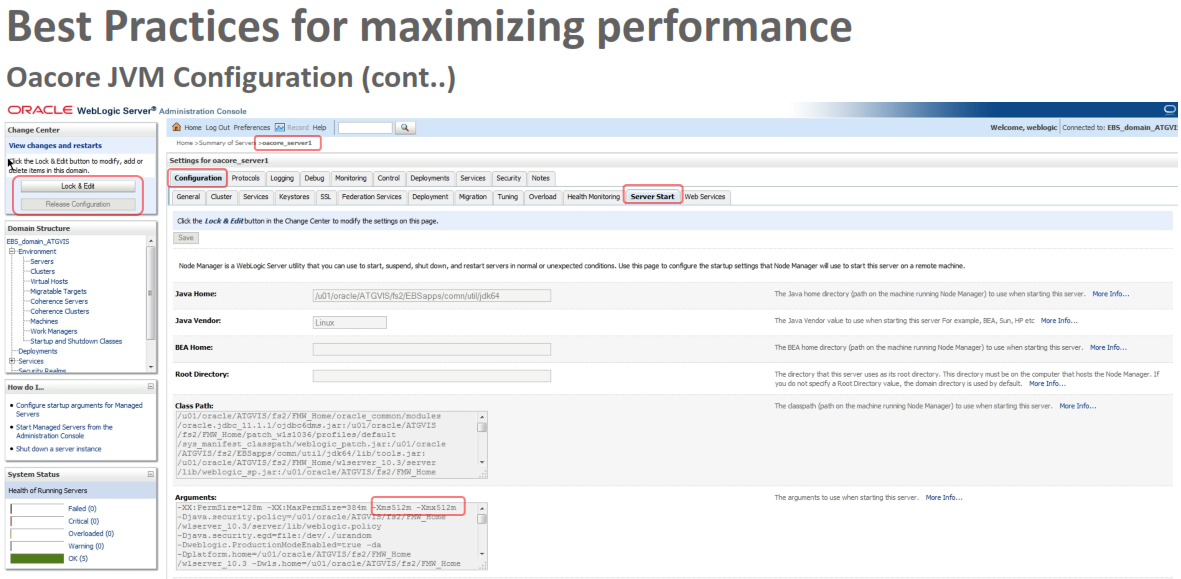
Default oacore JVM heap size is 512 MB (roughly supports 50 users)
We recommend to configure 2 GB JVM Heap Space for oacore.
– This can roughly support 150 to 200 users depending on usage.
For higher user load additional oacore managed servers need to be
created.
We recommend to have 1 managed server per 2 CPU.
For best response time results, use multiple managed instances.
Note: You should always size your systems based on tests using
representative data and workloads for your own environment.
Modifying the JVM properties for Adminserver
When adding more managed servers, it is essential to increase the Admin
Server memory, Else Adminserver will fail with OutofMemory er ror.
Steps for modifying Adminserver memory:
– Stop the Admin Server using adadminsrvctl.sh script
– Modify s_nm_jvm_startup_properties context variable.
– Default value is 512 MB.
– Run AutoConfig on application nodes.
– Start the Admin Server using adadminsrvctl.sh script.
Tuning Tips for Heap Sizes
Make sure adequate Physical memory available on the server when you
tune heap space
If this value is exceeded, the OS starts paging and performance degrades
significantly.
The Virtual Memory (VM) always uses more memory than the heap size.
In production environments, if you find constant growth and shrink in heap
space set the minimum heap size and the maximum heap size to the same
value.
Recommended Performance Patches
Below are the 3 critical connection leak bug fixes which improves
performance and stability considerably:
– 19782999:R12.FWK.C - R: CONNECTION LEAK IN OAERRORPAGE.JSP AND
OAERRORDETAILPAGE.JSP
– 19807163:R12.OAM.C - 1OFF:12.2.3:TRANSACTIONSCOPE - CONNECTION LEAK IN
12.2.3
– 9494816:R12.FND.C - JDBC CONNECTION LEAK IN
ORACLE.APPS.FND.COMMON.ERRORSTACK
It is also recommended to apply the latest TXK and AD patches following
the note : Applying the Latest AD and TXK Release Update Packs to Oracle
E-Business Suite Release 12.2 (Doc ID 1617461.1)
Useful Documents
WLS 10.3.6Documentation Library
http://docs.oracle.com/cd/E23943_01/wls.htm
EBS 12.2 Documentation Library
http://docs.oracle.com/cd/E26401_01/index.htm
Some important 12.2 MOS Documents
– Useful 12.2 Documents For Customers And ATG Support Engineers (Doc ID 585889.1).
– Managing Configuration of Oracle HTTP Server and Web Application Services in
Oracle E-Business Suite Release 12.2 (Doc ID 1905593.1)
– Using Oracle Fusion Middleware Diagnostic Framework With Oracle E-Business Suite
Release 12.2 (Doc ID 1428056.1)
Some important 12.2 MOS Documents (cont..)
– How To Detect a Connection Leak Using Diagnostic JDBC Dumps (Doc ID 1502054.1)
– 12.2 Ebusiness Suite - Collecting Fusion Middleware Log Files (Doc ID 1362900.1)
– Oracle Applications E-Business Suite 12.2 Fusion Middleware Log Files: Locate,View,
and Control (Doc ID 1366187.1)
– Applying the Latest AD and TXK Release Update Packs to Oracle E-Business Suite
Release 12.2 (Doc ID 1617461.1)
– Oracle E-Business Suite Release 12.2: Upgrade Sizing and Best Practices
(Doc ID 1597531.1)
Copyright © 2014, Oracle and/or its affiliates. All rights reserved. |
Oracle Confidential – Internal/Restricted/Highly Restricted 53
Release R12.2 Fusion Middleware Software Installation and Setup
Fusion Middleware Software Installation and Setup
1 Jrockit Installation
2 Weblogic Installation
3 ADF Installation
4 Domain Creation
5 Start Services and Configuration
1. Jrockit Installation
Log in to application server with os user and execute below commands
cd /u11/
mkdir ASCP
cd /erp_admin/app/APCC
./jrockit-jdk1.6.0_45-R28.2.7-4.1.0-linux-x64.bin
Welcome screen display
Click on Next

Choose Installation dir screen will display
Browse the Installation location and click on Next
Optional components screen display

Click on Next and then click on Done
Jrockit Installation completed
 2. Weblogic Installation
Export java and start installation using below commands
export JAVA_HOME=/u11/ASCP/jrockit-jdk1.6.0_45
export PATH=$JAVA_HOME/bin:$PATH
cd /erp_admin/app/demantra/linux
java -jar wls1036_generic.jar
Choose Installation Dir screen display
 Click on Next
Browse the installation location and click on Next
Security Updates screen display
 Uncheck the box and click on Yes—Next –Yes--Yes
Connection failed screen display
 Check the box and click on continue
Install type screen display

Select Typical and click on Next
JDK selection screen display
 Cross check the JDK location and Click on Next
Product Installation Screen display
 Click on Next
Installation summary screen display
 Click on Next
Installation progress screen display
 Installation in progress
Installation Completion screen display
 Click on Done
Weblogic Installation screen complete Screenshot to be captured as evidence to support result
 3. ADF Installation
Go to software location and start the installation
cd /erp_admin/app/APCC/Disk1
./runinstaller
Welcome Screen display
 Click on Next
Software updates screen display
 Select Skip Software updates and click on Next
Pre checks screen display
 Click on Next
Specify installation location screen display
 Browse the Middleware location and click on Next
Application Server selectin screen display
 Select Weblogic Server and click on Next
Installation summary screen display
 Click on Install ?Then Next ? Then Finish
ADF installation completes Screenshot to be captured as evidence to support result
 4. Domain Creation
Execute config.sh and click on Next
cd /u11/ASCP/wlserver_10.3/common/bin
./config.sh
Domain Source screen display
 Select products like below and click on Next
Specify domain name, location screen display
 Provide the domain name and click on Next
Weblogic pwd screen display
 Provide weblogic pwd and click on Next
Server start Mode screen display
 Select Development Mode and lick on Next
Optional Configurations screen display
 Select First and second option and click on Next
Configure Admin server screen display
 Provide admin server details like below click on Next
Configure Managed Server screen display
 Click on Add --Provide Managed server details like below click on Next
Configure cluster screen display
 Click on Next
Configure Machines screen display
 Click on Add Provide the Machine details like below click on Next
Assign Servers screen display
 Assign Managed server to machine by click on Forward Yarrow
Configuration summary screen display
 Click on Create
Creation domain screen display
 Click on Done
Domain Creation completed screen close
 5. Start Services and Configuration
Admin server
cd /u11/ASCP/user_projects/domains/ascp_domain/bin
nohup ./startWebLogic.sh &
Node Manager
cd /u11/ASCP/wlserver_10.3/server/bin
nohup ./startNodeManager.sh &
Open Console Navigate to Environment—Servers select managed server and start managed server
http://apdba12.blogspot.com:7004/console
All services should start successfully

login to Em once and Navigate to Weblogic Domain -> Managed Server (ascp_domain)
Click on Apply JRF Template You should get the confirmation after the successful completion of Template.
Apply JRF Template successfully
 Go to console Restart the Managed server (Stop and start)
Restart manage server successfully
 Node manager parameter setup on linux
cd /u11/ASCP/wlserver_10.3/common/nodemanager
change StartScriptEnabled parameter to true
vi nodemanager.properties
StartScriptEnabled=true
:wq
ps -ef|grep weblogic.Node
kill -9 <node manager process>
cd /u11/ASCP/wlserver_10.3/server/bin
nohup ./startNodeManager.sh &
Parameter change to true and node manager restart
On console Navigate to Services?Datasources?new? Generic Data source
Datasource creation screen display
 Provide the Name: ApplicationDBDS
JNDI name: jdbc/ApplicationDBDS and click on Next
JDBC driver screen display
 Select Database driver like below and click on Next
Transactions screen display
 Uncheck the Support Global Transaction and click on Next
Connection properties screen display
 Provide the database details and click on next
Test Datasource screen display
 Click on Test configuration and click on Next it should succesful
Test should successful
 Select managed server and click on Finish
Data source creation complete
 Create directories for Persistence store
cd /u11/ASCP/user_projects/domains/ascp_domain
mkdir –m 777 output
mdkir –m 777 log
cd /u11/ASCP/user_projects/domains/ascp_domain/servers/ascp_ManagedServer
mkdir mds All directories should create successfully
Login to console
Navigate to Services--.Persistent Store on the left Panel in the console New?Create Filestore
Properties screen display
 Provide exact details as given below and click on ok
Name: mds-ascp-repos
Target: ascp_ManagedServer
Directory: /u11/ASCP/user_projects/domains/ascp_domain/servers/ascp_ManagedServer/mds
Persistence store should create
 We need to deploy the ear file which we can get it from APPL_TOP (EBS server)
Go to $MSC_TOP/patch/115/ear
Copy PlanningUIEar.zip to /tmp or any desired location
 Login to console From the Left Panel of the console Select Deployments –Click on Install?Select ear file and click on Next
Choose target style screen display
 Click on Next
Available targets screen display
 Select Managed Server and click on Next?Next?Finish?Save
Deployment should complete successfully
Go to Deployments it should active
Deployment should show in active state
 Update boot.properties
cd /u11/ASCP/user_projects/domains/ascp_domain/servers/AdminServer/security
if boot.properties file does not exist create file and update weblogic username and pwd
username=weblogic
password=weblogicpwd
Save and exit
Do the same steps for managed server also
cd /u11/ASCP/user_projects/domains/ascp_domain/servers/ascp_ManagedServer/security
create boot.properties file with weblogic username and pwd if not present Deployment should show in active state
END OF STEPS
1 Jrockit Installation
2 Weblogic Installation
3 ADF Installation
4 Domain Creation
5 Start Services and Configuration
1. Jrockit Installation
Log in to application server with os user and execute below commands
cd /u11/
mkdir ASCP
cd /erp_admin/app/APCC
./jrockit-jdk1.6.0_45-R28.2.7-4.1.0-linux-x64.bin
Welcome screen display
Click on Next
Choose Installation dir screen will display
Browse the Installation location and click on Next
Optional components screen display
Click on Next and then click on Done
Jrockit Installation completed
Export java and start installation using below commands
export JAVA_HOME=/u11/ASCP/jrockit-jdk1.6.0_45
export PATH=$JAVA_HOME/bin:$PATH
cd /erp_admin/app/demantra/linux
java -jar wls1036_generic.jar
Choose Installation Dir screen display
Browse the installation location and click on Next
Security Updates screen display
Connection failed screen display
Install type screen display
Select Typical and click on Next
JDK selection screen display
Product Installation Screen display
Installation summary screen display
Installation progress screen display
Installation Completion screen display
Weblogic Installation screen complete Screenshot to be captured as evidence to support result
Go to software location and start the installation
cd /erp_admin/app/APCC/Disk1
./runinstaller
Welcome Screen display

Software updates screen display
Pre checks screen display
Specify installation location screen display
Application Server selectin screen display
Installation summary screen display
ADF installation completes Screenshot to be captured as evidence to support result
Execute config.sh and click on Next
cd /u11/ASCP/wlserver_10.3/common/bin
./config.sh
Domain Source screen display

Specify domain name, location screen display
Weblogic pwd screen display
Server start Mode screen display
Optional Configurations screen display
Configure Admin server screen display
Configure Managed Server screen display
Configure cluster screen display
Configure Machines screen display
Assign Servers screen display
Configuration summary screen display
Creation domain screen display
Domain Creation completed screen close

Admin server
cd /u11/ASCP/user_projects/domains/ascp_domain/bin
nohup ./startWebLogic.sh &
Node Manager
cd /u11/ASCP/wlserver_10.3/server/bin
nohup ./startNodeManager.sh &
Open Console Navigate to Environment—Servers select managed server and start managed server
http://apdba12.blogspot.com:7004/console
All services should start successfully

Click on Apply JRF Template You should get the confirmation after the successful completion of Template.
Apply JRF Template successfully

Restart manage server successfully

cd /u11/ASCP/wlserver_10.3/common/nodemanager
change StartScriptEnabled parameter to true
vi nodemanager.properties
StartScriptEnabled=true
:wq
ps -ef|grep weblogic.Node
kill -9 <node manager process>
cd /u11/ASCP/wlserver_10.3/server/bin
nohup ./startNodeManager.sh &
Parameter change to true and node manager restart
On console Navigate to Services?Datasources?new? Generic Data source
Datasource creation screen display

JNDI name: jdbc/ApplicationDBDS and click on Next
JDBC driver screen display

Transactions screen display

Connection properties screen display

Test Datasource screen display

Test should successful

Data source creation complete

cd /u11/ASCP/user_projects/domains/ascp_domain
mkdir –m 777 output
mdkir –m 777 log
cd /u11/ASCP/user_projects/domains/ascp_domain/servers/ascp_ManagedServer
mkdir mds All directories should create successfully
Login to console
Navigate to Services--.Persistent Store on the left Panel in the console New?Create Filestore
Properties screen display

Name: mds-ascp-repos
Target: ascp_ManagedServer
Directory: /u11/ASCP/user_projects/domains/ascp_domain/servers/ascp_ManagedServer/mds
Persistence store should create

Go to $MSC_TOP/patch/115/ear
Copy PlanningUIEar.zip to /tmp or any desired location

Choose target style screen display

Available targets screen display

Deployment should complete successfully
Deployment should show in active state

cd /u11/ASCP/user_projects/domains/ascp_domain/servers/AdminServer/security
if boot.properties file does not exist create file and update weblogic username and pwd
username=weblogic
password=weblogicpwd
Save and exit
Do the same steps for managed server also
cd /u11/ASCP/user_projects/domains/ascp_domain/servers/ascp_ManagedServer/security
create boot.properties file with weblogic username and pwd if not present Deployment should show in active state
END OF STEPS
Subscribe to:
Posts
(
Atom
)